Stop the Mess! How to Auto-Rename and Prevent Duplicate Downloads While download image
Does your Downloads folder look like this?IMG_2024.jpg, download(1).jpg, unknown.png...
Finding the right image later is a nightmare. Professional asset management starts with proper naming and avoiding duplicates.
Automatically Rename Downloaded Images
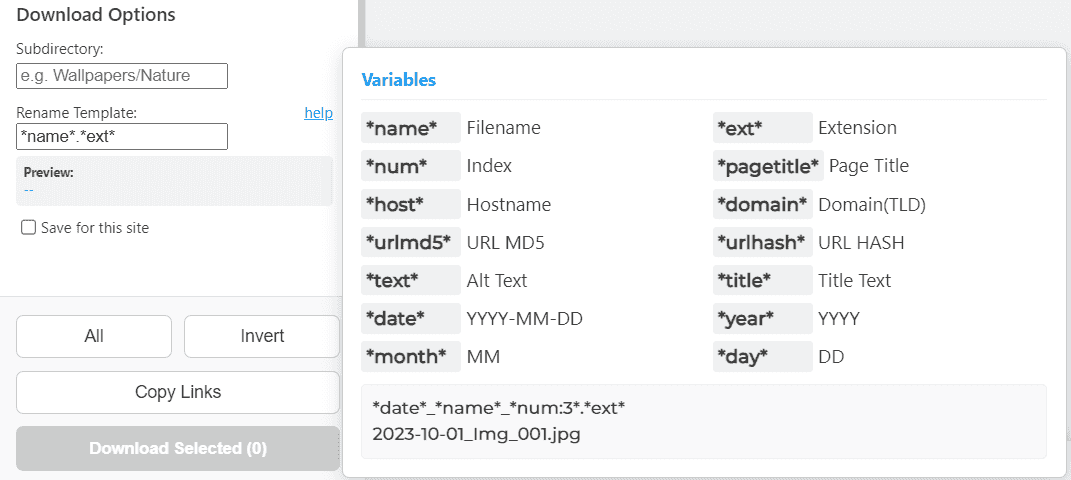
Keptora features a powerful Template Engine. Instead of using the random file name from the server, you can define your own rules.
How to use Renaming Templates:
In the Keptora Studio sidebar, find the "Download Settings" section. Enter a template string like:*date*_*pagetitle*_*num:3*
*date*: Adds today's date (e.g., 2026-05-20).*pagetitle*: Adds the title of the webpage (e.g., "iPhone_16_Review").*num:3*: Adds a sequence number with padding (e.g., 001, 002).
Result: Your file will be saved as 2026-05-20_iPhone_16_Review_001.jpg. Clean and searchable!
Preventing Duplicate Downloads
If you download images frequently, you probably have multiple copies of the same file. This wastes disk space and creates clutter.
Keptora offers an exclusive Local Deduplication feature (powered by the Desktop Server).
- Before downloading, Keptora checks your local database.
- If the file already exists, it shows a "⚠️ Exists" warning.
- You can click "Locate" to open the existing file instead of downloading it again.
This feature makes Keptora the only tool you need for building large, organized image datasets.