How to Setup the Desktop Server
Setup the Keptora Desktop Server
Unlock local deduplication and instant file management.
1 Why do I need the Desktop Server?
Browsers (like Chrome/Edge) are sandboxed for security, meaning extensions cannot see what files you already have on your hard drive. The Keptora Desktop Server is a tiny, lightweight bridge that solves this limitation.
Before downloading, it checks your local database. If the file exists, it warns you instead of creating "image(1).jpg".
Adds "Open" and "Show in Folder" buttons directly in the extension, so you never lose track of a download.
🔒 Security & Privacy First
- • Local Only: The server runs entirely on your machine (`localhost`). It does not upload your files or browsing history to any cloud.
- • Private Communication: Data is only transferred between the Keptora Extension and the Desktop App on your own computer.
- • Open Architecture: The server is a simple Go binary. It uses a local SQLite database (`keptoradesktopserver.db`) stored in your user folder.
2 Installation & Configuration
Run the Server
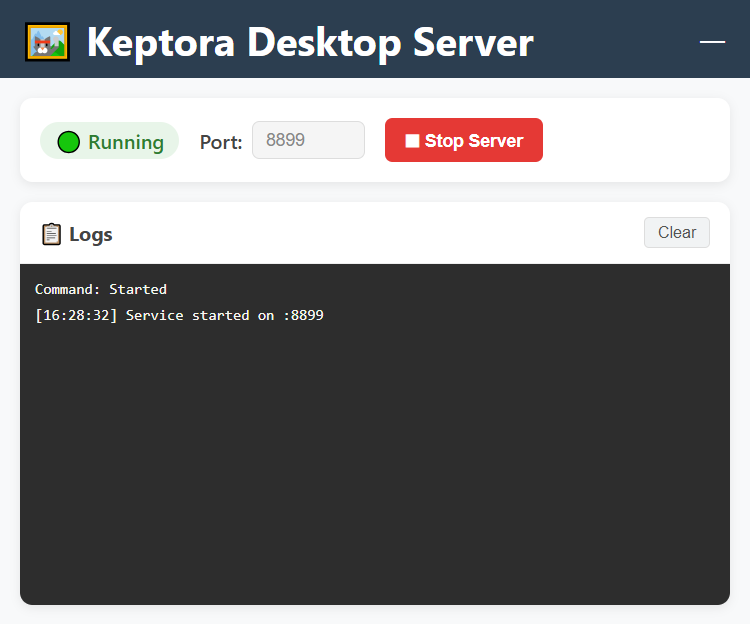
Unzip the file and double-click KeptoraDesktopServer.exe.
You will see a control panel. Ensure the status says Running.
(You can close the window; it will minimize to the system tray.)
Connect the Extension
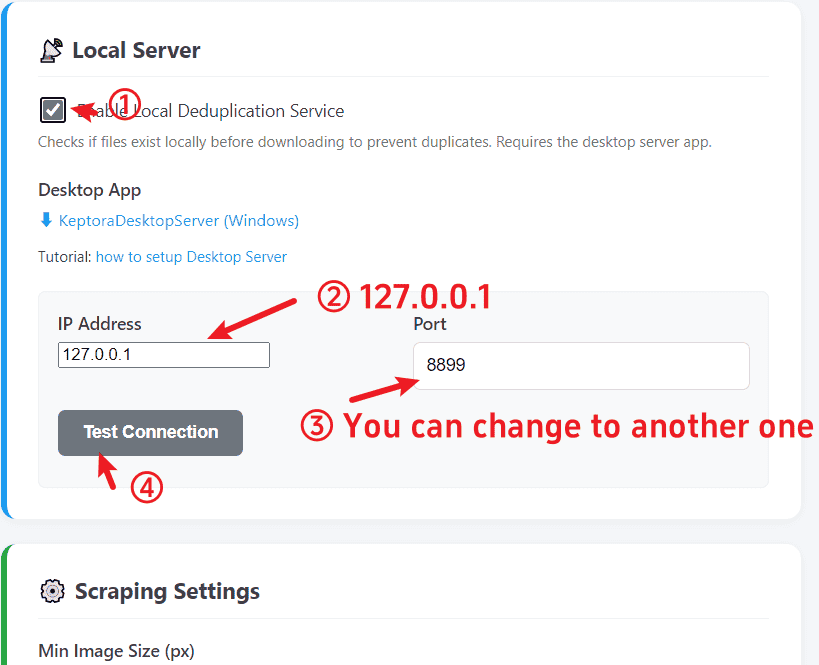
- Right-click the Keptora extension icon in Chrome/Edge and select Options.
- Scroll down to the "Desktop Server" section.
- Check the box Enable Local Deduplication.
- Ensure the Port matches the one in the desktop app (Default:
8899). - Click the Test Connection button. You should see a green success message.
Troubleshooting
Connection Failed? Make sure the desktop app is running. If Port 8899 is blocked by another app, change it in the desktop app, click "Stop" then "Start", and update the port in the extension Options.