How to Batch Download Images from Any Website in 2026
Saving images one by one is tedious. In this guide, we'll show you how to automate this process...
The Problem with "Save Image As"
It takes too much time...
Why You Need a Bulk Image Downloader
Whether you are a designer collecting mood boards, a marketer gathering assets, or a data researcher, downloading images manually is inefficient.
- Time-Consuming: Saving 100 images manually takes ~20 minutes.
- Low Quality: Right-clicking often saves the low-res thumbnail, not the original HD image.
- Disorganized: Files are saved with random names like d8s7df.jpg in your Downloads folder.
Keptora solves all these problems. It scans the webpage, finds the high-resolution versions, and lets you download them in a single click.
Step-by-Step: How to Batch Download Images
Step 1: Install Keptora
First, add Keptora to your Chrome browser from the Web Store. It’s free to start.
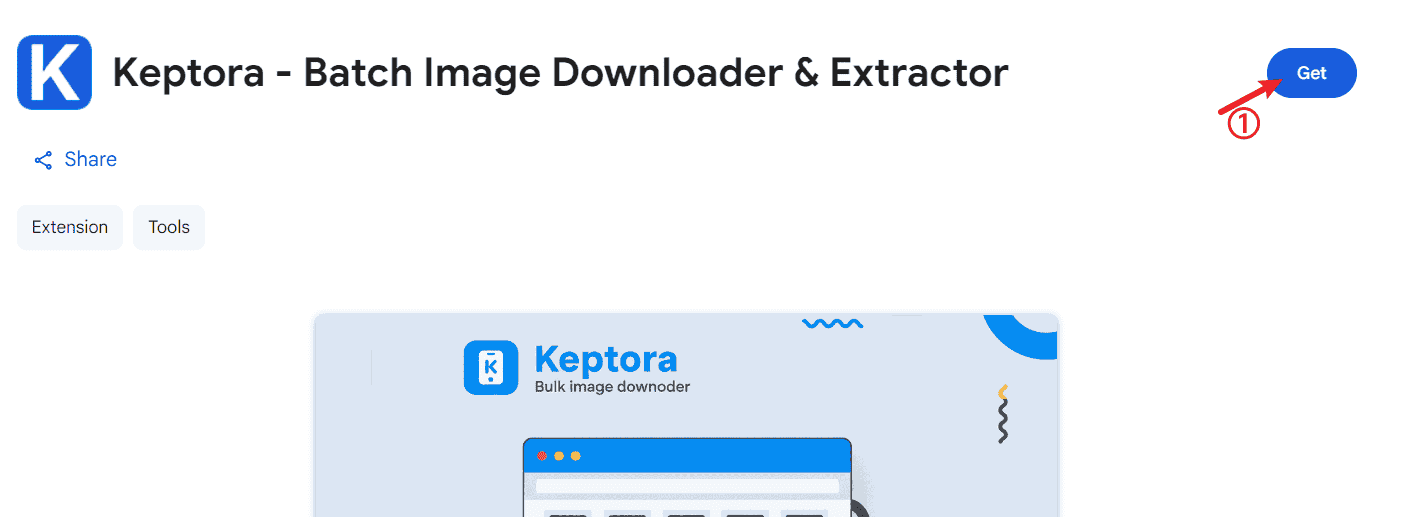
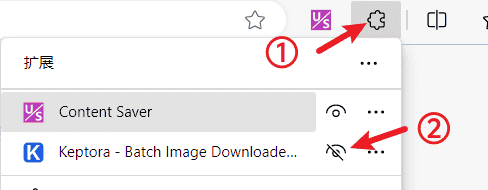
Display extension keptora image downloader on the browser toolbar
Step 2: Open the Target Website
Navigate to the website containing the images (e.g., Unsplash, Pinterest, or a news site). Scroll down to load all images if the page uses "infinite scroll."
Step 3: Launch Keptora
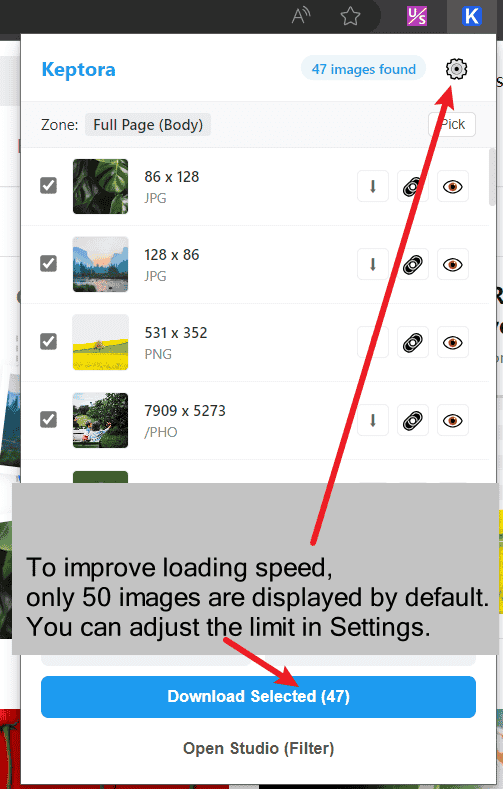
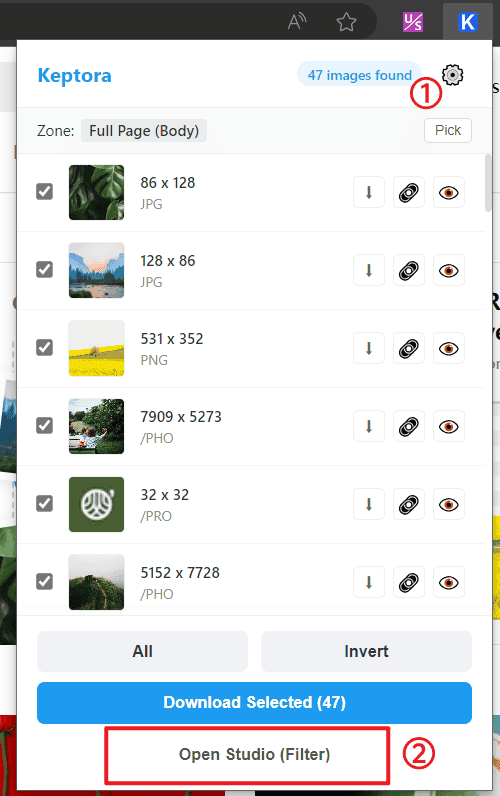
Click the Keptora icon in your browser toolbar. A popup will appear showing all detected images.
Step 4: Filter and Select
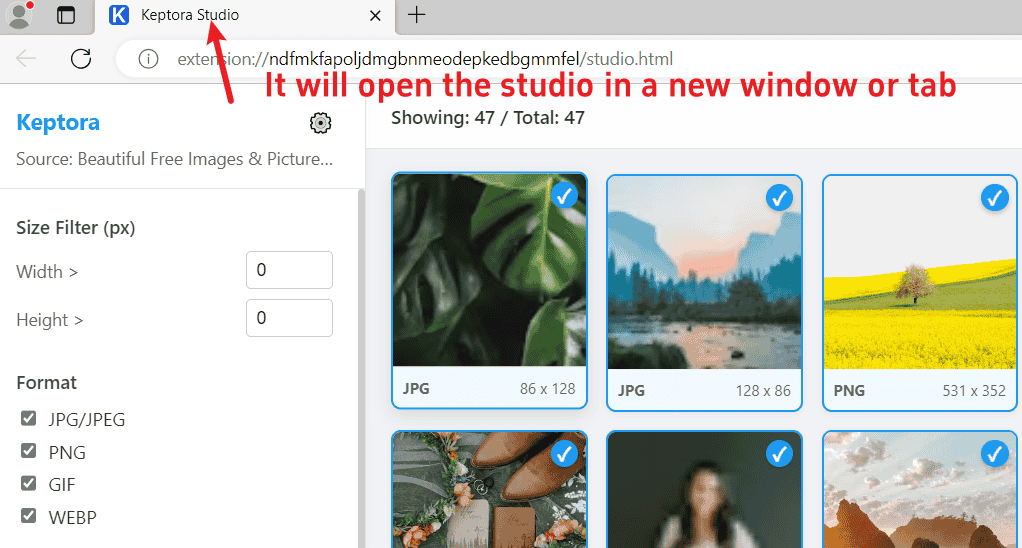
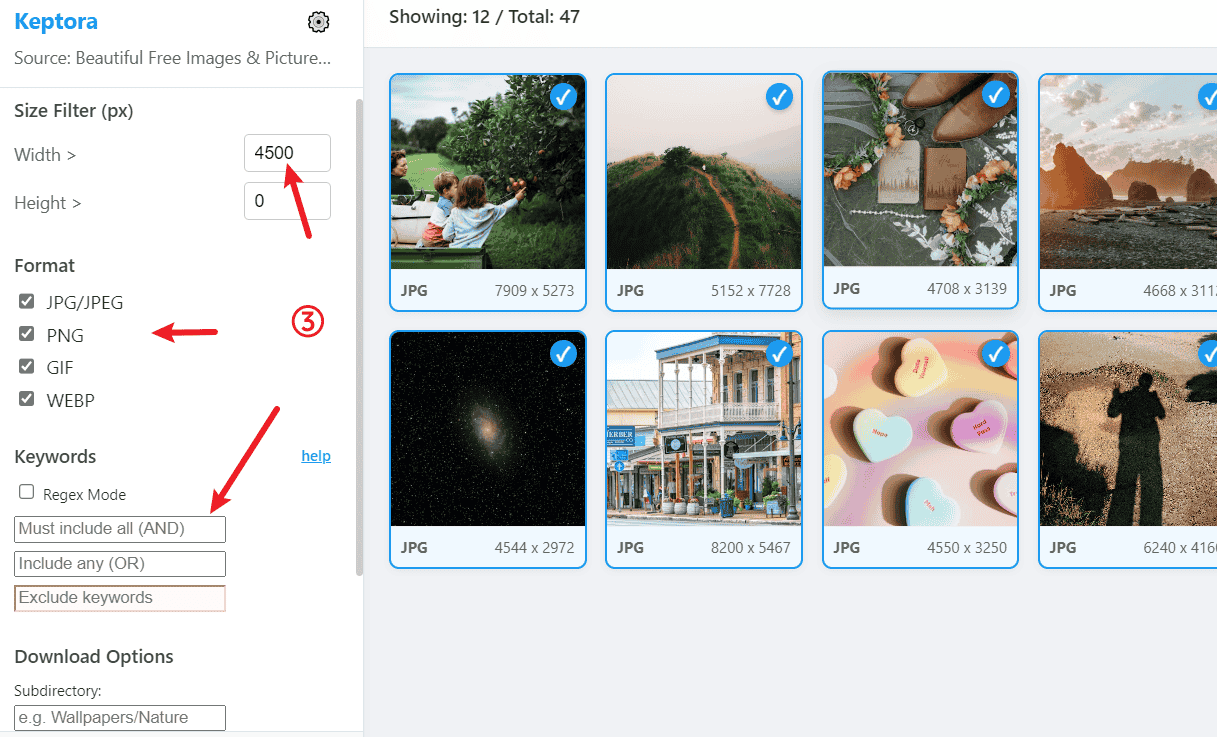
Instead of downloading everything (including icons and ads), click "Open Studio Workspace" for advanced control.
- Filter by Size: Set "Width > 500px" to hide small icons.
- Filter by Type: Select only JPG or PNG files.
Step 5: Download All
Click "Select All" and then hit the "Download Selected" button. Keptora will queue the downloads and save them to your computer instantly.
Why Keptora is the Best Choice in 2026
Unlike older extensions (like Fatkun or Image Downloader), Keptora offers:
- Smart Filtering: Regex support for advanced users.
- Local Deduplication: Prevents downloading the same file twice.
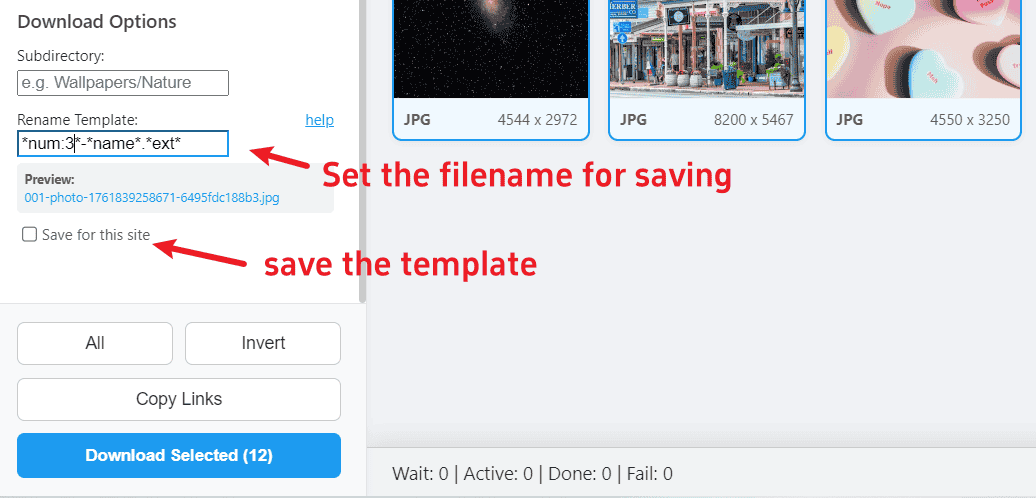
- Auto-Renaming: Saves files as `WebpageTitle_001.jpg` automatically.